How to Reverse Search a Video Without Downloading an App
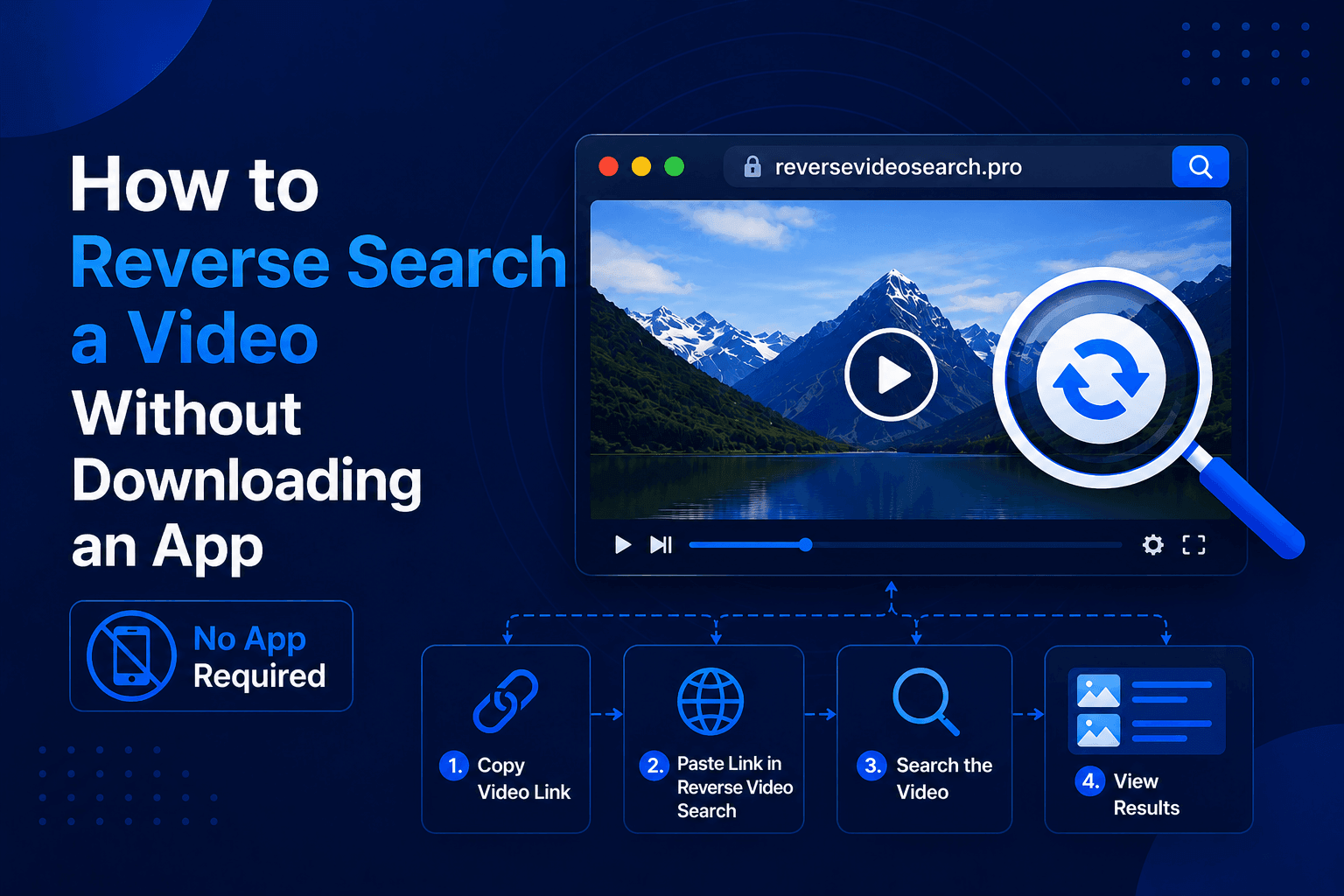
Someone sends you a video, and you want to know where it came from. You search for a solution, and half the guides tell you to install this app or download that software. Your storage is full, you do not want another app tracking you, or maybe you are on a work computer where you cannot install anything at all.
Here is the good news: you do not need to download anything. Every effective reverse video search method today runs directly in your browser, on any device. Your phone's Safari or Chrome can do everything an app can do, and in most cases, do it better.
This guide walks you through six install-free ways to reverse search a video, from the fastest one-click option to manual search engine tricks, with honest notes on when each method works and when it fails.
Quick Overview: 6 App-Free Methods Compared
| Method | Works On | Input | Effort | Best For |
|---|---|---|---|---|
| Dedicated online tool | Any browser, any device | Video file or URL | Very low | Finding a video's source and reposts |
| Google Lens (web) | Any browser | Screenshot | Medium | Single frames, object identification |
| Bing Visual Search | Any browser | Screenshot | Medium | A second opinion on Google's results |
| Yandex Images | Any browser | Screenshot | Medium | Faces and non-Western content |
| TinEye | Any browser | Screenshot | Medium | Tracing the oldest copy of a frame |
| Built-in browser tricks | Chrome and Safari | On-screen video | Very low | Quick checks while browsing |
Now let's go through each one in detail.
Method 1: Use a Browser-Based Reverse Video Search Tool (Fastest)
The most direct route is a web tool built specifically for this job. Our free reverse video search tool runs entirely in your browser, on desktop, iPhone, or Android, with nothing to install and no account to create.
Here is how it works:
- Open the site in any browser. Chrome, Safari, Firefox, and Edge all work.
- Upload the video or paste its link. You can pull the file straight from your camera roll on mobile, or paste a URL from YouTube, TikTok, Instagram, Facebook, or Reddit.
- Start the search. The tool automatically extracts the most distinctive keyframes from the clip, converts them into visual fingerprints, and matches them against indexed content across the web.
- Review your matches. Within seconds, you see where the video appears online, including reposted copies and links to the likely original source.
The reason this beats the manual methods below comes down to one thing: frames. A screenshot search checks one frame. A dedicated tool checks dozens across the clip's timeline and combines the results, so a single unlucky frame never sinks your search. We explain the full technology behind this in our guide to what reverse video search is and how it works.
A note on privacy, since this worries many people about apps: the search runs in your browser session, and uploaded videos are deleted afterward. Nothing is installed, nothing runs in the background, and no permissions are requested from your device.
Method 2: Google Lens in Your Browser (No App Needed)
Many people assume Google Lens requires the Google app. It does not. The full Lens experience is available at images.google.com in any browser, including on mobile.
- Pause the video on a distinctive frame. Faces, text, logos, and landmarks match best. Generic scenery matches worst.
- Take a screenshot. Power + Volume Up on iPhone, Power + Volume Down on Android, Shift + Command + 4 on Mac, Windows Key + PrtScn on Windows.
- Go to images.google.com and tap the camera icon. Upload your screenshot from your gallery or drag it into the search bar on desktop.
- Check "Find image source." This shows pages containing that exact frame, which often includes the video's original page.
Keep in mind that Google only indexes video thumbnails and preview images, not every frame, so random mid-video screenshots frequently return nothing. If your first frame fails, try one closer to the video's thumbnail. We cover all of Google's quirks, shortcuts, and limits in detail in our guide on whether you can reverse search a video on Google.
Method 3: Bing Visual Search
Microsoft's visual search lives at bing.com/visualsearch and works in any browser, no app or Microsoft account required.
The process mirrors Google: upload your video screenshot and Bing returns visually similar images and related pages. Bing's index overlaps with Google's but is not identical, so it occasionally surfaces sources Google misses. Its crop feature is genuinely useful too: you can drag a box around just the important part of your frame, like a face or a sign, and search only that region.
Use Bing as your second opinion when Google's results are thin.
Method 4: Yandex Images (The Underrated Option)
Yandex is Russia's biggest search engine, and its image search at yandex.com/images is free in any browser. For two specific situations, it routinely beats both Google and Bing:
- Faces. Yandex's facial matching is unusually strong and can find the same person across different photos and videos, not just exact copies of your frame.
- Non-Western content. For clips originating from Russia, Eastern Europe, Central Asia, and the Middle East, Yandex has indexed regional sites and platforms that Western engines never crawled.
If a viral clip seems to come from outside North America and Google finds nothing, Yandex should be your next stop. Upload your screenshot through the camera icon in the search bar, exactly like Google.
Method 5: TinEye
TinEye at tineye.com is a specialist reverse image engine with one killer feature for video investigators: sorting results by date. Upload a frame, sort by "Oldest," and you can see the earliest indexed appearance of that visual, which is often the original upload.
TinEye's index is smaller than Google's, so it finds fewer matches overall. But when your goal is establishing which copy came first, its chronological view does something none of the big engines offer. It runs entirely in the browser with free daily searches.
Method 6: Built-In Browser Tricks (Zero Screenshots Required)
If the video is playing in your browser right now, you may not even need a screenshot.
Chrome (desktop): pause the video, right-click directly on it, and choose "Search with Google Lens." Chrome captures the visible frame and searches it in one step.
Safari (iPhone and Mac): Apple's Visual Look Up is built into the system, not a download. Pause a video in Safari or open a saved frame in Photos, and if you see the sparkle icon or an "info" button, tap it. It identifies landmarks, plants, pets, and objects directly from the frame.
These tricks are perfect for quick curiosity checks while scrolling, though they carry the same single-frame limitation as every screenshot method.
Which Method Should You Choose?
Here is the simple decision path:
- You have the video file or its link, and you want its source: go straight to the dedicated online tool (Method 1). It automates everything the other methods make you do by hand, and multi-frame matching gives it the best accuracy. If you are unsure why whole-video search beats frame search, our comparison of reverse video search vs reverse image search walks through the differences.
- You only have a screenshot: use Google Lens first (Method 2), then Yandex (Method 4) if Google fails.
- You want to identify something inside the video: a product, a landmark, a plant, use Google Lens or Safari Visual Look Up.
- You need to prove which copy came first: run your best frame through TinEye and sort by oldest (Method 5).
- You are mid-scroll and just curious: right-click with Chrome or tap Visual Look Up in Safari (Method 6).
For serious cases, like verifying a news clip or documenting content theft, combine methods: run the full video through the dedicated tool, then follow up on key frames with Lens, Yandex, and TinEye. Each engine sees parts of the web the others miss.
Tips for Better Results (Whatever Method You Use)
- Avoid screen recordings. Recording your screen bakes in your phone's battery icon, clock, and app interface, and search engines treat those pixels as part of the image. Use the original file or a clean screenshot instead.
- Skip intros, outros, and watermarked sections. These elements appear in thousands of unrelated videos and flood your results with false matches.
- Pick frames with unique details. On-screen text, distinctive buildings, and faces are gold. Sunsets and generic crowds are noise.
- Use the highest quality copy you can get. Compression artifacts blur the details that matching algorithms rely on.
- Check dates on everything you find. The earliest upload is usually, though not always, the original. Confirm with the account name and description before treating it as the source.
Frequently Asked Questions
Can I really reverse search a video on my iPhone without an app?
Yes. Open Safari or Chrome, go to a browser-based tool like reversevideosearch.pro, and upload the video straight from your camera roll. The whole process runs on the web. Google Lens also works in the browser at images.google.com for screenshot searches.
Is there any advantage to downloading an app instead?
For reverse video searching, no. Browser tools access the same search technology without taking storage space, requesting device permissions, or running in the background. The browser version is the full version.
Are these browser methods free?
All six methods in this guide are free. Google, Bing, Yandex, and the built-in browser tricks are completely free, TinEye offers free daily searches, and our dedicated tool is free with no registration.
Is uploading a video to an online tool safe?
With a reputable tool, yes. Our tool processes videos for the search only and deletes them after your session. Nothing is published, shared, or stored long-term. As a general rule, avoid tools that require account creation just to run a basic search.
Why did every method return nothing for my video?
The video is probably not indexed anywhere public yet. Common causes: it is very new, it was only shared privately (WhatsApp, Telegram, closed groups), it is region-locked, or it is original footage that has never been posted before. No search method, app, or browser can find content the public web has never seen.
Do these methods work for TikTok and Instagram videos?
Yes. Paste the TikTok or Instagram link into the dedicated tool, or screenshot the paused clip and run it through the search engines. Reposted viral clips are exactly what these methods trace best.
Final Thoughts
The idea that you need to download an app to reverse search a video is outdated. Everything, from Google Lens to Yandex to full multi-frame video matching, now runs in the browser you already have, on the device already in your hand.
For quick single-frame checks, the search engines have you covered. For actually tracing a video to its source, a purpose-built web tool does in seconds what would take twenty minutes of manual screenshotting.
Try it yourself: open our free reverse video search tool in any browser, drop in a clip or paste a link, and see where that video really came from. No downloads, no sign-up, no storage space sacrificed.